


One memory, many chats
Chat is where you talk to Gedo: text, attachments, voice input and calls all start here. However many chats you open and whichever role you talk to, they all read the same memory.
Each turn starts with a rule-based check on whether to look into memory; the memories used and the steps taken are folded into the “Steps” line above the reply, and you can open it to see them. After the reply is sent, what is worth keeping is saved with its source, and anything uncertain goes to To review.
- “New chat”, at the top of the sidebar, always opens an empty chat.
- “All chats” is the full list of chats, grouped by date.
- Search: on the web, press ⌘K to search chat titles and messages, archived ones included; “Go to” in the same panel jumps straight to Tasks, Memory, Avatar, Connections and Settings. In the app, tap “Search chats” at the top of the sidebar. This searches chats; for things you recorded, look in Memory.
Managing chats and messages
“Review this conversation” goes over the whole chat again; any memory candidates it finds go to your inbox and are kept only once you confirm them. Deleting a chat does not delete attachments already saved to your knowledge base.
| Where | What you can do |
|---|---|
| Conversation menu | Rename · Pin · Archive · Review this conversation · Delete chat |
| Under a reply | Copy · Read aloud · Regenerate · Branch in new chat |
| Your own message | Edit and send it again; its attachments stay with it |
What the composer can do
- Modes (web): Auto · Memory · To-do · Goal · Review. Auto is the default and lets Companion decide whether to use a tool; any other mode makes this turn save a memory, add a to-do, plan a goal or generate a review.
- “+”: upload an attachment, link goals, to-dos or cards, or pick connectors. For attachment rules, see attachments and file sharing.
- Voice input turns what you say into text and sends it, so it is still a text chat. To talk in real time, use a call.
- Temporary chat (web): while a new chat is still empty, turn on “Temporary” above the composer. That chat neither reads nor writes your long-term memory, and it is never reviewed.
- Forget: say “forget what I told you about …” in a chat, and an “N memories forgotten” card comes back. AI won't bring these up and won't record them automatically again; once the undo window passes, they are deleted.
Roles are contacts
A role is where Gedo stands on one kind of matter: the same memory, plus that profession's working habits and limits. A role is a contact, not a standing conversation; each new chat with a role is a separate record.
- In the Roles section of the sidebar, click “Add a role” to open the Role library.
- Under “Official presets”, pick a role and click “Add”.
- From then on, click the role in the sidebar to go back to your latest chat with them; to start on something new, use a button like “New chat with Coach” in the chat header or the role panel.
| Official preset | What it handles |
|---|---|
| Guide | Travel: pre-trip items and a destination brief; booking and paying are the last step, and you take it |
| Care navigator | Doctor visits: reads your history first and prepares the questions to ask, without diagnosing |
| Butler | Keeping in touch: checks your notes on a person first, and nudges to reach out come with a reason |
| House manager | Documents, bills and subscriptions: one group at a time, whatever expires soonest first |
| Event planner | Events: date, budget and size first, deadlines up front |
| Secretary | Odds and ends: breaks them into steps and files to-dos and reminders; you send the drafts |
| Relocation consultant | Moving: pins down three dates first, then orders everything by what blocks what |
| Coach | Goals: breaks them into this week's moves and comes back on time to see what got done |
Calling on a role with @
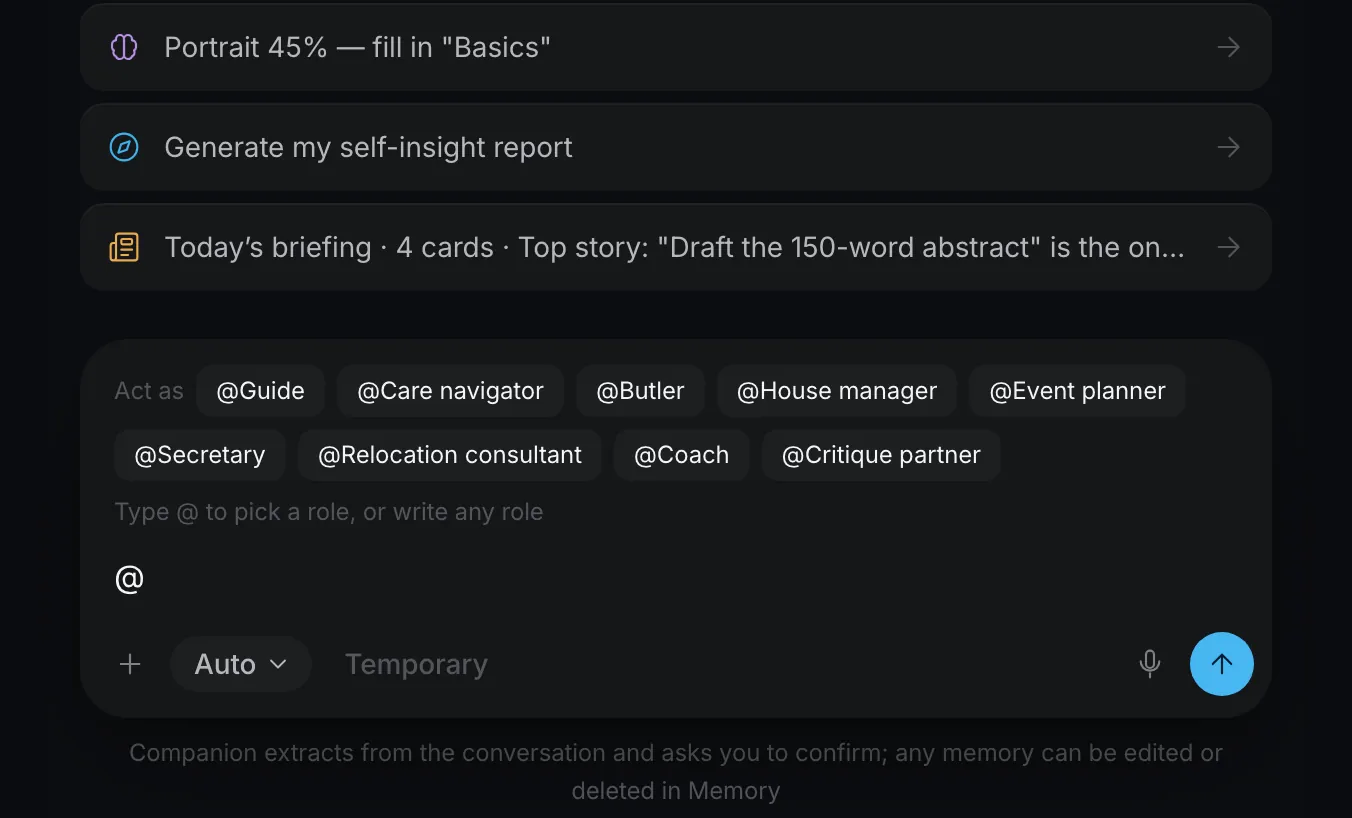
Type @ in the composer to see your roles. @ an official role and a new chat starts with that role, while the original chat keeps a line like “Continue with Guide →”; a role's chat always stays with that role, and @ another role starts another new chat.
Write your own description after @, such as an interviewer, and only the tone of this chat changes; no new chat starts.
@ someone you know and you can pick “Send to them”, which delivers the sentence as written to their avatar inbox, or “Ask Gedo instead”. To add people you know, see people you know, messages and hand-offs.
Custom roles and the role panel
In the Role library, click “New custom role” and give it a name (up to 20 characters), a picture, a tagline and how it works. A custom role only shapes tone and focus: it gets no capabilities or permissions beyond the presets, and what you write is treated as your request, never as a system instruction.
How many you can create depends on your plan, and you are told when you reach the limit. A custom role can be exported as JSON, and someone else can bring it in with “Import” in the Role library. Delete a custom role and its chats become ordinary chats, with not a word of history deleted.
Click the role name in the chat header to open the role panel, with four tabs: Setup · Skills · Connectors · Routines. “Limit this role to these connectors” only narrows the scope; it is not a permission, and authorization still applies. Routines are off by default until you switch them on, and their results land in each routine's own chat; see routines.