


What an avatar is
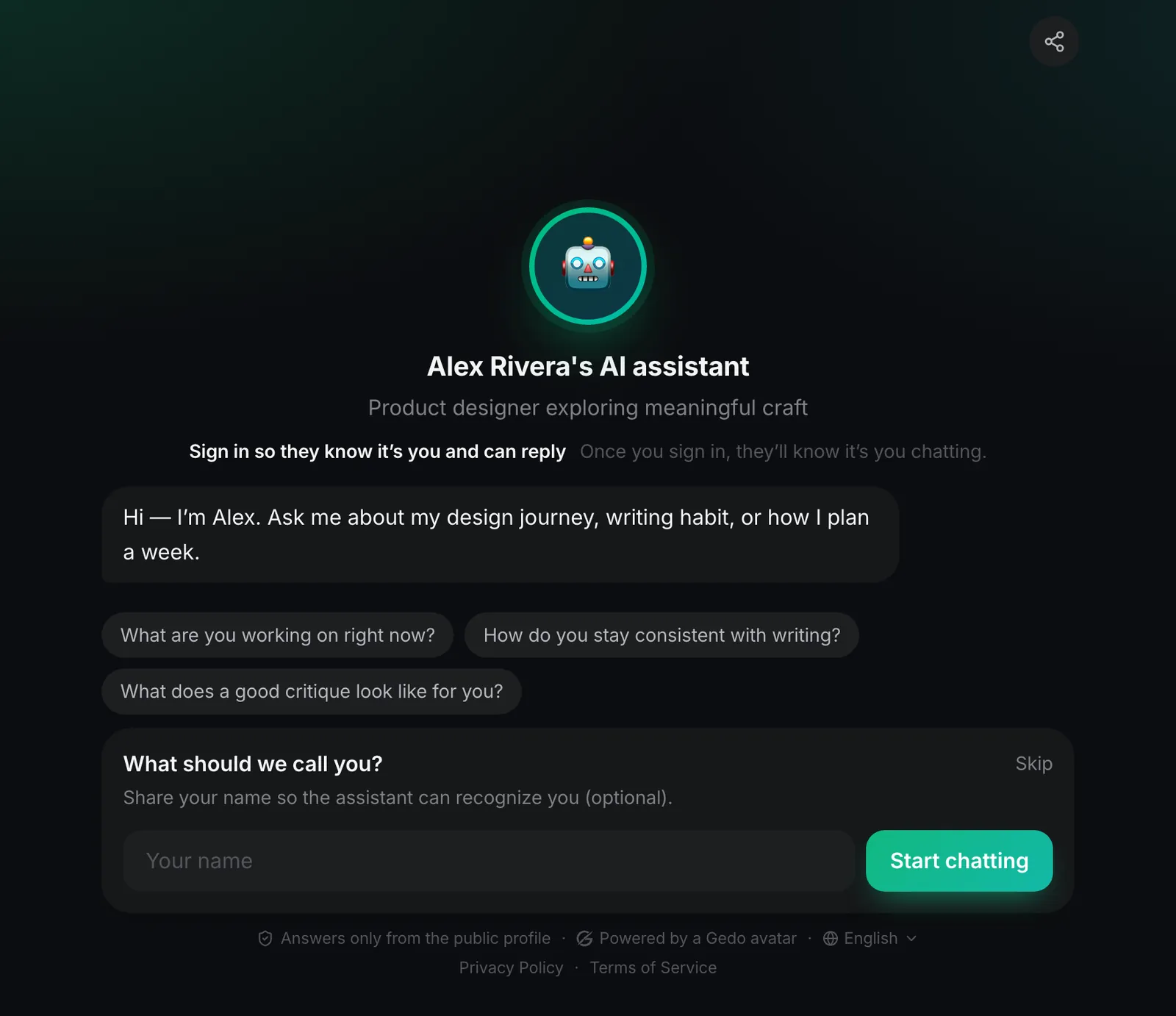
Your avatar is the public side of you. When someone opens your link, scans your QR code, types into the widget embedded on your site, calls it on the web or by phone, or has another AI ask over MCP, your avatar introduces you in the third person: your background, what you're good at, what you're working on.
When it receives visitors, it covers only what you've opened up, never speaks as you, and calls no tools. Visitor conversations are stored on their own and stay out of your own chats; to-dos and memories pulled from them are written only when you adopt them.
The same avatar can also go out and get things done for you: write emails, look things up and fill in forms on the web, and work with data on a computer. You turn that side on yourself, and every send, submit, sign-in or payment waits for your OK. See Let your avatar act for you.
Publish in three steps
The first time you open Avatar, you see an intro page. No one can see your avatar until you publish, and you can unpublish anytime.
Once it's published, the Distribute tab holds the ways to share it listed below, and that's also where you unpublish.
- Tap “Get started” and make your card first: add a public display name and an intro, and pick a look. Suggested questions, a theme color and a custom look can wait until after you publish, in Config.
- In “Who can reach it,” choose who can chat with your avatar, whether it takes calls and phone calls, and where it can be found. Changes save right away.
- Review and tap “Publish avatar.” When you see “Your avatar is live,” send the link to people who want to know you, or share the QR code.
- Dedicated link: gedo.ai/your-username. Usernames are 4–30 characters of lowercase letters, numbers and hyphens; you can change yours once every 30 days, and old links keep redirecting.
- QR code: share it offline or print it on a business card or poster; scanning takes people straight to your avatar.
- Website embed: copy the embed code to put your avatar's chat widget on your site or blog.
- External agent access: lets other AIs ask your avatar over MCP, with the connection details in this item. See People you know, messages and hand-offs.
- Unpublish: the link stops opening right away, and your settings and conversations stay. Publish again and the same link works.
Who can reach it
Set this in Avatar › Config › Who can reach it; changes save right away. Access has three levels, and tightening it takes effect at once: an open conversation follows the new level from its next message.
Beyond access, a few channels can be switched on and off on their own.
| Access | Who can chat with your avatar | Notes |
|---|---|---|
| Public | Anyone with the link | The default |
| Passcode | Anyone who enters the passcode; people you know don't need it | 4–64 characters; once saved, even you can't see it again, only reset it |
| People you know | Only people you know | Everyone else sees only your card and a way to sign in |
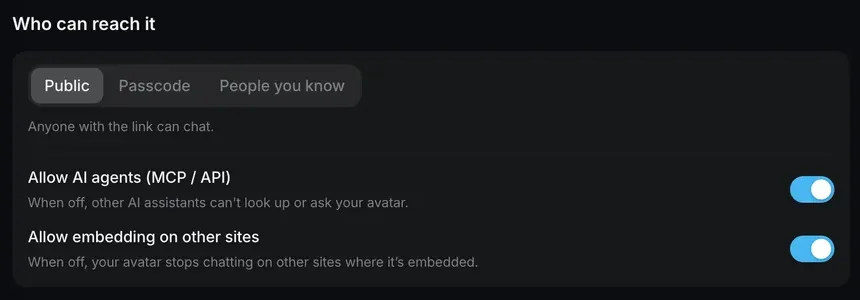
- “Allow AI agents (MCP / API)”: on by default. When off, other AI assistants can't look up or ask your avatar.
- “Allow embedding on other sites”: on by default. When off, your avatar stops chatting on sites where it's embedded.
- “Let visitors call your avatar” and “Let visitors call your avatar by phone”: off by default. See Calls and phone calls with your avatar.
- “Let people email your avatar”: available to Pro and Ultra members, off by default. See Let your avatar act for you.
Permissions: what it knows and how it says it
Your avatar places each visitor in a circle based on who it recognizes. Anyone it doesn't recognize, anyone who only typed in a name, and every phone caller count as Everyone; people who came through your invite link or signed in with a linked account count as People you know; people you marked as Close, and confirmed were really them on their first visit, count as Close.
An answer that uses memories searches only the memories that circle may see, and each match is used, reworded or dropped according to the principles you wrote; once written, the answer is checked against your principles again and rewritten once if it breaks one. If your principles can't be checked in a turn, no memories are used in it.
Closer circles see more; for adding people you know, see People you know, messages and hand-offs. Set the following in Avatar › Permissions:
- Profile visibility: role, work and personality; active goals; hobbies; and contact info. Each can be No one, Close, People you know or Everyone. By default, role and work are visible to Everyone, goals to People you know, and hobbies and contact info to no one; your card is always public.
- Memory visibility: none are shared by default, and you can open them by dimension. Health, finance and memories about other people never go out with a dimension; you can only share them one by one in Memory.
- Principles: in your own words, which of the memories you opened can be mentioned and how. Principles can only narrow things down. Until you write your own, the default is: “Don't mention exact amounts of money, addresses or health details. Never pass on things other people told me. Keep family matters general.”
- Visitor view: pick a circle to list everything it can see, or ask a question as them and see “Your avatar would say” and “How your principles decided.” Test chats don't use avatar credits; they use smart credits.
After a visit
The footer of the visitor page says your avatar answers only from the public profile. Signed-in visitors are treated as anonymous by default, and their account is linked to the conversation only if they tap “Let them know it's me”; a name someone types in is only used to address them and never moves them to a closer circle. Visitors can tap “Delete this conversation” to remove it and any call records from your side, except anything you've already saved.
You can read back every visitor conversation in Avatar › Activity. When a visitor ends the conversation or it has been idle for 30 minutes, Gedo pulls out messages, to-dos and memory candidates into “Pending review,” and nothing is written until you tap Adopt or Adopt all; exchanges with AI agents are only logged, not extracted.
Every answer that used memories records which ones were used and which were held back by your principles, for your eyes only; “Don't say it like this” adds a principle. Questions your avatar couldn't answer can become Public Q&A, and when a visitor asks the same thing or something close, your avatar answers from what you wrote.
Messages and to-dos from people you know arrive in Avatar › Inbox, one thread per person. When replying, you can have your Twin model draft in your voice; the Twin model is in limited testing and rolled out to a list in batches, and subscribing to Ultra doesn't put you on the list.
Looks and avatar credits
Pick a look in Avatar › Config under “Character stage”: 8 official characters, each with six states (idle, greeting, listening, thinking, happy and comforting), free and switchable anytime. You can also use a simple picture. On your public page the character is the scene, and it looks wherever a visitor taps.
From Pro, you can create a custom character, which uses smart credits. Describe it in words and approve a first image before the full set of six poses is drawn; descriptions can't include minors, real people or copyrighted characters. You can add a reference photo after checking “This photo is of me or I have permission to use it”; the result is always stylized, never photorealistic, and the original is deleted after generation.
Avatar replies to visitors draw on avatar credits of their own that never touch the smart credits you use day to day, and they're spent only on replies that succeed; calls and phone calls with visitors use the same credits, by the minute. When they run out, visitors see a single line saying you can't reply right now, and no AI is called and nothing is spent.
This month's usage is shown as a percentage: under Settings › Membership and on your avatar's Activity page. Free includes a small amount of avatar credits; Pro and Ultra include more.