


Where to import from
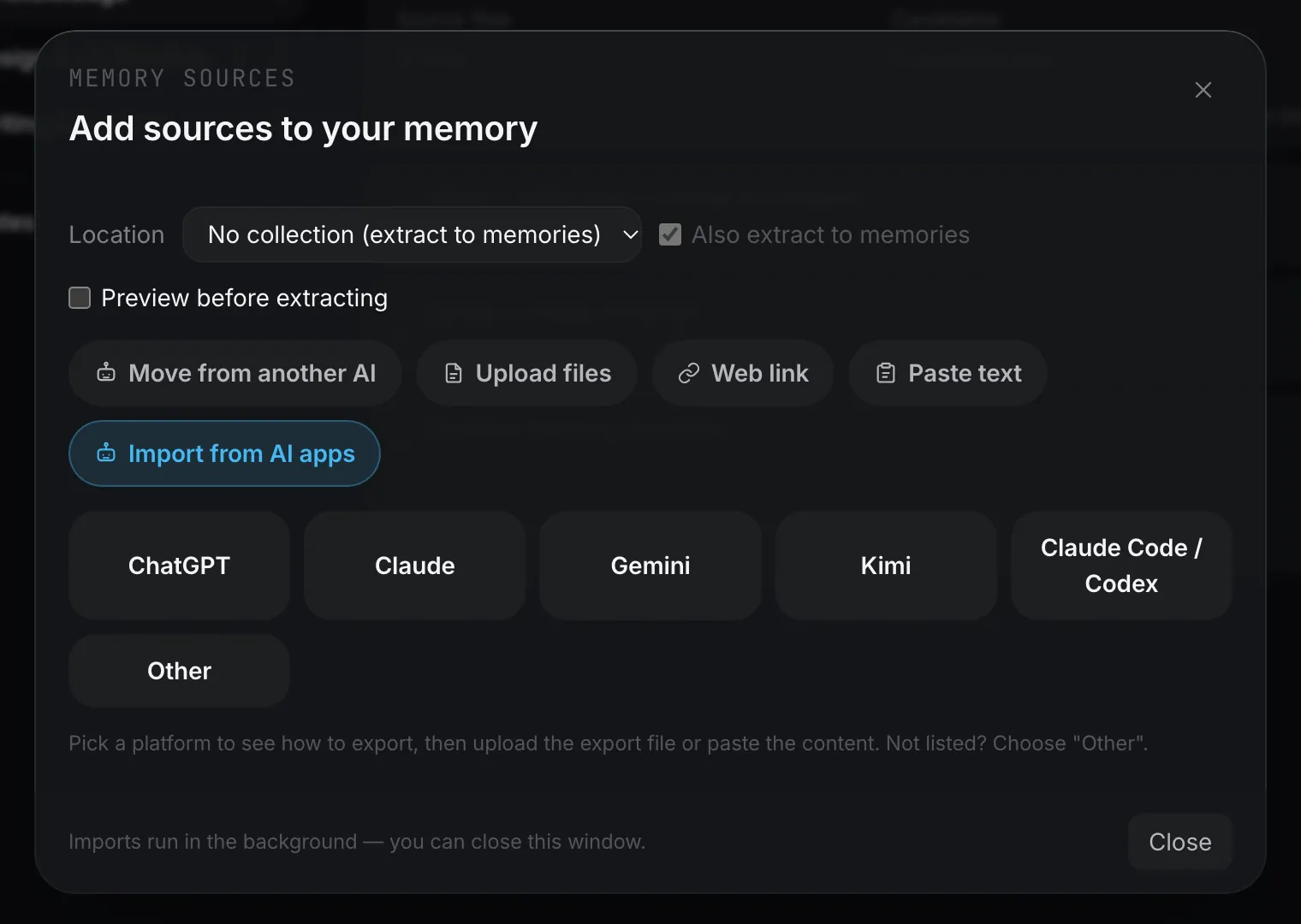
On the web, Memory › Knowledge › Add offers five ways: Move from another AI, Upload files, Web link, Paste text and Import from AI apps. In the app, open Import memories on the Memory page and follow the steps.
Bring a memory over in First meeting is another way in: Another AI runs the same move flow, and Social imports from X, LinkedIn, Facebook and blogs. You can reopen First meeting anytime with Open First meeting in Settings.
Imports are not limited on any plan, and candidates waiting in To review don’t count toward your memory total until you accept them.
Move from another AI
The quickest way is to ask the AI you’ve been using to write down what it knows about you, then paste its answer back. ChatGPT, Claude, Gemini, Grok, Copilot, Doubao, Perplexity, Mistral and Meta AI are supported; for anything else, choose Other AI.
- In Add, choose Move from another AI, pick the platform and choose Copy prompt.
- Open that AI, start a new chat and paste the prompt.
- Copy its whole answer, paste it back and choose Import. If it says there’s more, ask it to continue and paste that too.
- In To review, open the group named after the platform, such as What ChatGPT knows about you, and go through it by category: accept a whole section, or edit a line first.
- Accepting a line about a person also adds it to that person’s card.
- A goal line can become a goal with Also add as a goal.
- Reply preferences are about how you want replies, not about you: accepted ones apply to Gedo’s replies, aren’t saved as memories, and can be removed in Settings.
Chat histories, files and links
Import from AI apps has step-by-step export guides for ChatGPT, Claude, Gemini, Kimi, DeepSeek, Grok, Perplexity, Copilot and Mistral; upload the export file as you receive it. For an AI with no official export, choose Other and paste the chat.
Facts from imported chats are dated by when you said them, not by the day you imported them. The chats also join the original text of past chats that Gedo refers to, and deleting the source deletes that text too.
- Files: TXT, Markdown, PDF, Word (DOCX), PowerPoint (PPTX), Excel (XLSX), HTML, JSON, CSV, ZIP and images (the text in them is recognized first), up to 32 MB each. Answers can point to the page, the slide or the sheet.
- Personal data exports: Day One journals, Google Keep notes, Kindle highlights, Goodreads shelves and Telegram exports are recognized when uploaded; from Telegram, only your own messages and saved messages are kept.
- Web links: best for blogs and public pages. If fetching fails, paste the text instead.
- Pasted text: a bio, notes or chat transcripts all work.
Social accounts and coding sessions
Social accounts are imported from First meeting: in Bring a memory over, switch to Social. For X, sign in with X or upload tweets.js from your data archive; for LinkedIn and Facebook, upload their data exports; for a blog or website, paste the link to read the latest 30 posts.
Only your profile and what you posted are read, never your connections, messages or contact details, and what is read becomes candidates in To review. X posts are the exception: they are archived to From X in your knowledge base and don’t produce memory candidates, so to turn some into memories, choose Extract to memories there. To keep archiving new posts, connect X in Connections › Connectors.
Claude Code and Codex sessions can only be imported on the web, from Import from AI apps: choose the .jsonl chat files on your computer, they are cleaned up in your browser (tool calls, code and terminal output removed), and you see the text of each chat before anything uploads. These sessions are only used to extract memories, which show up in To review and are never accepted automatically; they aren’t saved to a topic, and Gedo never quotes their text in chat. To have Claude Code hand each new exchange to Gedo automatically, see Let other AIs hand whole conversations to Gedo.
After you import
The original files go to the library in Memory › Knowledge, where you can open or delete them anytime. When adding, Location and Also extract to memories decide where a source goes and whether it becomes memories; for a large import, turn on Preview before extracting to see what the first chunk would produce and pick the chunks to extract.
Extraction runs in the background and produces candidates that wait in To review; confident ones are grouped under Suggested, with Accept all. Import candidates left for 90 days expire and become rarely used memories.
Imports aren’t accepted automatically by default. Turn on Auto-accept imported memories in Settings › Privacy on the web and confident candidates are saved directly, up to a limit per source; To review then shows an Auto-accepted line with Undo all.
Each source is graded Normal, Personal or Sensitive automatically, and spotting an ID number, bank card number, passport number or medical record raises the grade. Sensitive sources are never sent to the model, extracted or searched, and only you can read them; you can change an automatic grade.
A few tips
- On your first import, start with Move from another AI: in a few minutes, what that AI knows about you arrives sorted by category.
- Gemini chat history is under My Activity in Google Takeout, with only Gemini Apps kept; selecting the Gemini product exports only Gems settings.
- If a ChatGPT export is over 32 MB, unzip it and upload only the files whose names start with conversations.
- To bring memories from another Gedo account, choose a .gmp file in Settings › Privacy › Import a memory pack: you see what will be added, skipped or in conflict first, and conflicts go to To review.
- In the Mac app, press ⌥⌘G in any app to jot something down, and choose Review first or Save directly for where it goes.